How to Link Alerts in a UE5 Campus Digital Twin: Points, Video, and Response Acceptance
A UE5 campus digital twin should carry the “same device, same event, same response record” across 3D location, status panels, video entry points, and work-order workflows. At project kickoff, confirm object IDs, alert sources, video permissions, response states, and target devices before fixing the scene scope. Acceptance must cover the normal path and network loss, duplicate alerts, unavailable video, and state recovery.
On this page6 sections
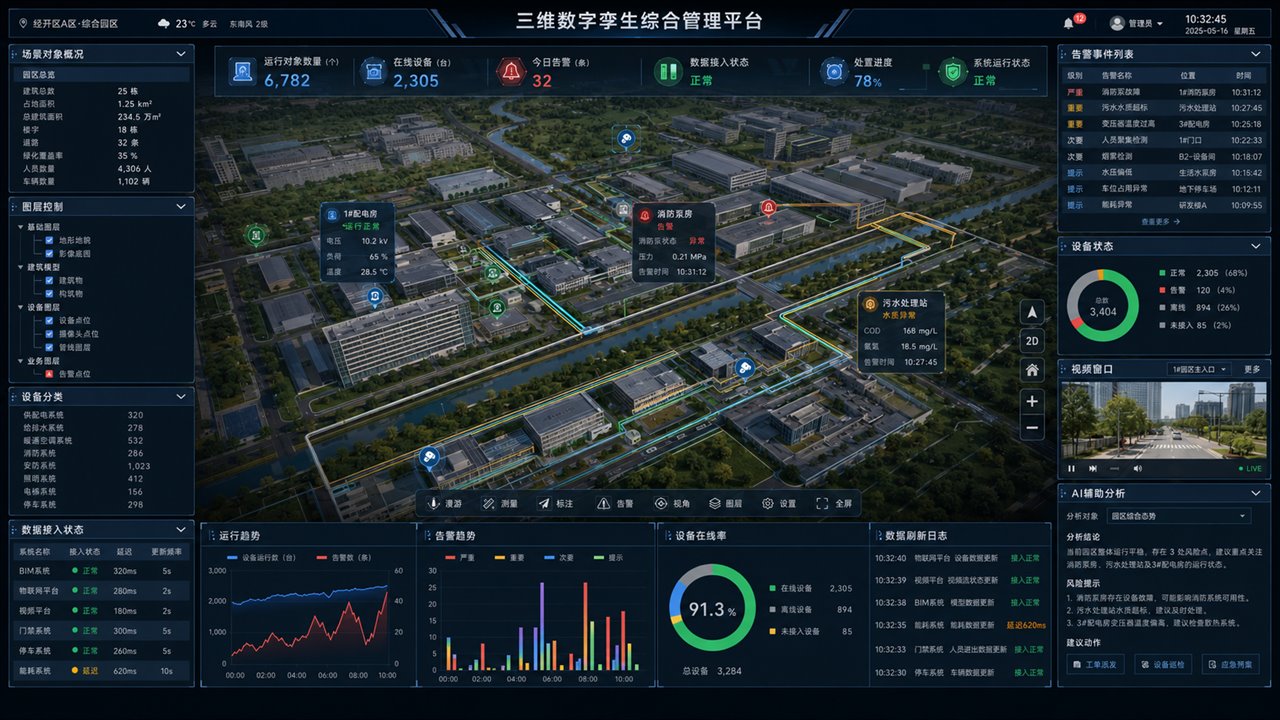
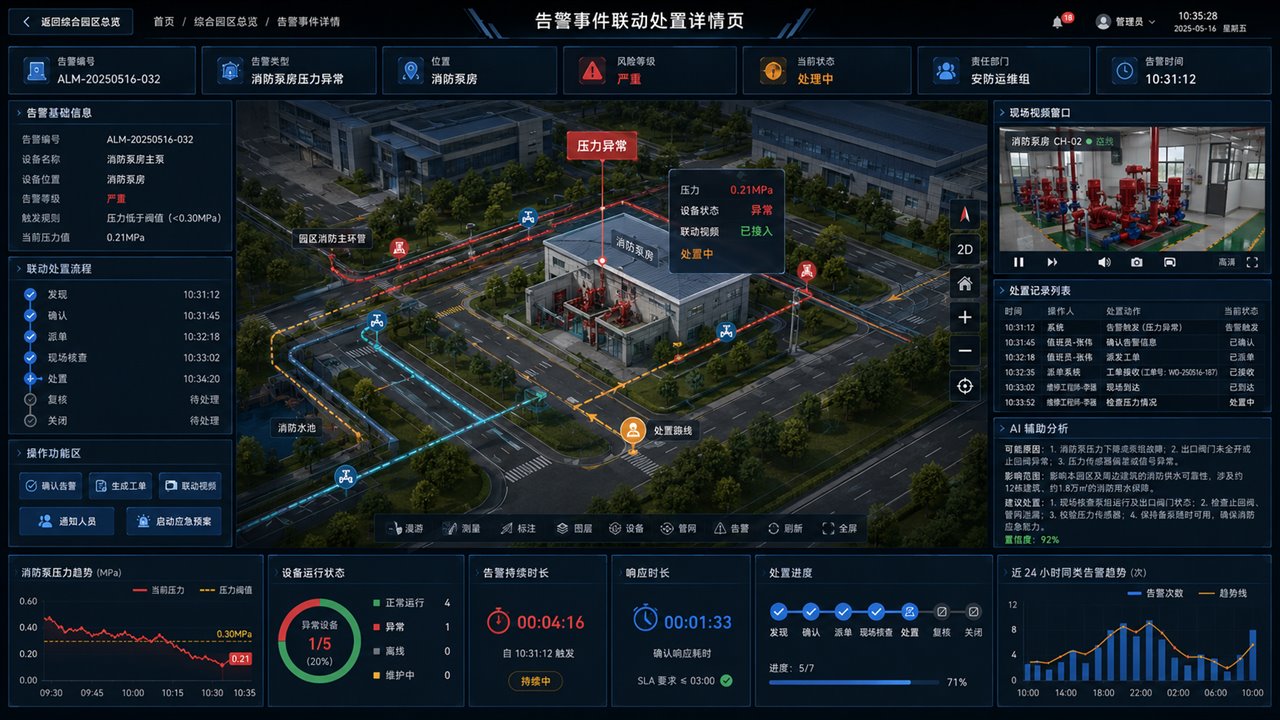
A campus fire-pump-room alert illustrates how to organize and check the solution. The images explain interface structure. They do not prove that any particular project used UE5, integrated live systems, or achieved a response outcome. The figures and timestamps shown are not field operating data.
First decide whether 3D interaction is necessary
If staff often need to locate a device ID within a floor, zone, pipeline, and nearby resources, 3D positioning may be useful as a workflow entry point. If the work is mainly to inspect alert counts, trends, or device lists, an ordinary dashboard and alert detail may be sufficient. The choice of UE5 also depends on available models, target PCs, browser access, and maintenance conditions; compare the digital twin technology options.
Start with one concrete question: After an alert, which user must make which decision? For example, control-room staff verify location and status, field staff receive a task, and a supervisor reviews the result. Once roles and actions are clear, decide what each view needs to show.
Turn one alert into a verifiable workflow
Scroll horizontally to see the full comparison table.
| Stage | Data to link | What to check in acceptance |
|---|---|---|
| Detect alert | Alert ID, device ID, source system, occurrence time, severity, and trigger rule | Choose an approved test event. Confirm the list and detail refer to the same event and repeated messages do not create unexplained duplicate records. |
| Locate object | Asset register, model object, zone or floor, coordinates, and point mapping | Click from list to scene and back from model to details, checking the same device ID and location—not just whether a red highlight appears. |
| Inspect field information | Device-state fields, data timestamp, and relationship between camera and device or zone | Open the correct video channel and verify permissions. If state data is stale, an API fails, or video is unavailable, show the reason and timestamp. |
| Record response | State definitions and responsible roles for acknowledgment, dispatch, inspection, handling, review, and closure | Complete a workflow with agreed roles. Scene, list, and work-order states must agree, and operations must trace to the same alert. |
| Restore and review | Alert-recovery conditions, manual closure conditions, history, and issue-resolution rules | Check whether normal equipment state and work-order closure require separate confirmation. Retain ended events so a reset interface does not erase the response record. |
This is a workflow example. The project owner must confirm actual thresholds, severity levels, response rules, and permitted actions according to equipment, process, and management needs. The visualization page does not replace field control or safety interlocks.
Complete mappings before connecting data and video
Create an “object—asset—data point—business page” mapping before designing APIs. Use the object, asset, point, and page mapping template (Chinese) to record object IDs, device IDs, fields, location, and owners, reducing problems when the same device has different IDs across systems.
- Event source: Does the alert come from the device platform, a business system, or a new rule? Who creates, cancels, recovers, and retains it?
- Status and time: Separate equipment, communications, and work-order states. Record source time and last successful update; do not interpret missing data as normal.
- Video entry: Check channel, location, account permissions, and access method. Specify whether the 3D scene opens a player, business page, or another agreed entry point.
- User actions: Which business system handles acknowledgment, dispatch, and review? Which roles may act, and how are failures shown and retried?
If formal APIs are not available, clearly identified samples can validate pages and workflows. Integration acceptance still needs comparable data in an approved test environment. For industrial data-path time, quality, and recovery testing, see the industrial real-time data integration and acceptance guide.
Divide responsibilities among the UE5 scene, business system, and deployment
Let the UE5 scene handle spatial presentation, object selection, and camera positioning, while business services manage alerts, work orders, permissions, and operation logs. Adapt the exact division to existing systems and project scope. Then, when adding a device or changing a response workflow, the team can identify whether point configuration, API mapping, or the scene project must change.
Browser access and local execution are different delivery paths. Epic's official Pixel Streaming documentation describes streaming audio and video from a running Unreal Engine application to a browser and receiving interactions back. Evaluate runtime capacity, network, sessions, and operations if using that path; “it opens in a browser” is not proof that concurrency and long-term operation meet requirements.
Add at least four exception scenarios to acceptance
Scroll horizontally to see the full comparison table.
| Test scenario | What to observe | Evidence to keep |
|---|---|---|
| Data API disconnects and recovers | The page distinguishes old from new data, and recovered alerts, states, and gaps follow the agreement. | API logs, page timestamps, and before-and-after record comparison. |
| The same event arrives twice or out of order | Lists, model states, and work orders do not produce contradictory duplicates. | Sample event order, alert IDs, and resulting records. |
| Video access is denied or the channel is unavailable | The message is clear and other business data remains visible; unavailable video must not appear as a verified field view. | Test role, channel ID, error prompt, and recovery record. |
| Equipment recovers before the work order is reviewed | Equipment and response states remain distinct, with documented closure criteria. | State rules, operation timeline, review, and closure records. |
Run performance tests with the agreed model scope, device, resolution, network, and representative event load. Record loading, positioning, video opening, and sustained operation; set thresholds from project goals. Check complete functionality and documents against the digital twin project acceptance checklist.
What to provide for an initial project assessment
One site plan or existing model, a sample device point list, one alert record, current response steps, video-access conditions, and target-device details are enough to discuss a first-phase path. If materials are incomplete, list the gaps, who supplies them, and what will validate them. A completed interface design is not the same as completed data integration.
The Hongshan Technology team has experience with Unity and Unreal Engine and can assess an approach against existing projects and business conditions. Confirm the actual engine and deliverables for each project separately. See UE5 digital twin development services (Chinese) and the smart factory warehouse digital twin case (Chinese). The case is a reference for business presentation and delivery scope, not evidence that UE5 was used.